Combo landing page metafields
Edit the hero, gallery, "What to Expect" and "Benefits of Attending" lists, reviews and FAQs on a combo landing page through its metafields.
A combo landing page lists the camps for one sport in one city, for example AFL/AFLW Football camps in Melbourne. This page calls them combo pages.
Each combo page keeps its own content in its metafields, which you edit in Shopify Admin. The combo-landing-page template sets the section order, fixed headings and buttons. Edit those in the theme editor, and expect the change to apply to every combo page.
This page describes the redesigned combo page (ASC-068). Until that release is published, live combo pages keep the earlier layout described in City and sport pages.
Open the page's metafields
- Go to Online Store, then Pages, and open the combo page.
- Check that Theme template is
combo-landing-page. - In the Metafields card, click View all.
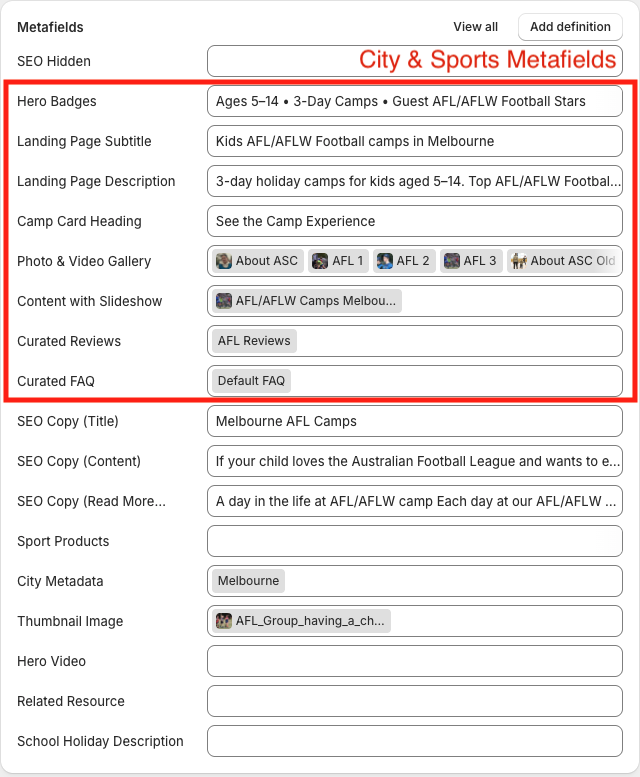
Several metafields link to a metaobject entry instead of holding text, for example Content with Slideshow and Curated Reviews. Edit those entries under Content, then Metaobjects. Many pages can link to one entry, and an edit to it changes all of them.
What each metafield controls
The table follows the page from top to bottom.
| Page area | Metafields | If left empty |
|---|---|---|
| Breadcrumbs, headings and camp list | SEO Landing Page: Sport Filter, SEO Landing Page: City Filter, City Metadata | The page lists no camps, and the headings show no sport or city |
| Hero | Landing Page Subtitle, Hero Badges, Landing Page Description, Thumbnail Image | Standard wording built from the sport and city, and the default hero image |
| See the Camp Experience gallery | Photo & Video Gallery | Five default gallery cards |
| Text block with a Read More link | SEO Copy (Title), SEO Copy (Content), SEO Copy (Read More Content) | The section hides each empty part |
| What to Expect and Benefits of Attending | Content with Slideshow | Generic copy items and the template's five photos, with no headings |
| What Parents Say | Curated Reviews | The Generic Reviews entry |
| Got any Questions? | Curated FAQ | Every FAQ entry |
These metafields have no effect on combo pages: Camp Card Heading, Hero Video, Sport Products, School Holiday Description, SEO Landing Page: Variants and Related Resource.
Sport and city
Set these three metafields first, because the rest of the page reads the sport and city from them.
| Metafield | What to enter | What it controls |
|---|---|---|
| SEO Landing Page: Sport Filter | The sport's Sport Safe Name, written as customers should see it, for example "AFL/AFLW Football" | The camp list, the hero and camp list headings, the breadcrumb and the [Sport] token |
| SEO Landing Page: City Filter | The name on the city's City entry, for example "Melbourne" | The camp list, the hero and camp list headings and the [City] token |
| City Metadata | The city's City entry | The breadcrumb link to the city page, the [State] token and the city in the reviews subtitle |
To match camps, the camp list ignores capital letters and treats spaces and punctuation as hyphens, so "afl aflw football" still matches "AFL/AFLW Football". The headings print the value as typed, so enter the capitals and punctuation customers should see.
The camp list reads only products in the collection camps-and-programs-for-seo-landing-pages. If the page shows "We're sorry there are currently no AFL/AFLW Football sport camps in Melbourne available" and the camps exist, follow Camp not showing.
Hero
| Metafield | Shows as | If empty |
|---|---|---|
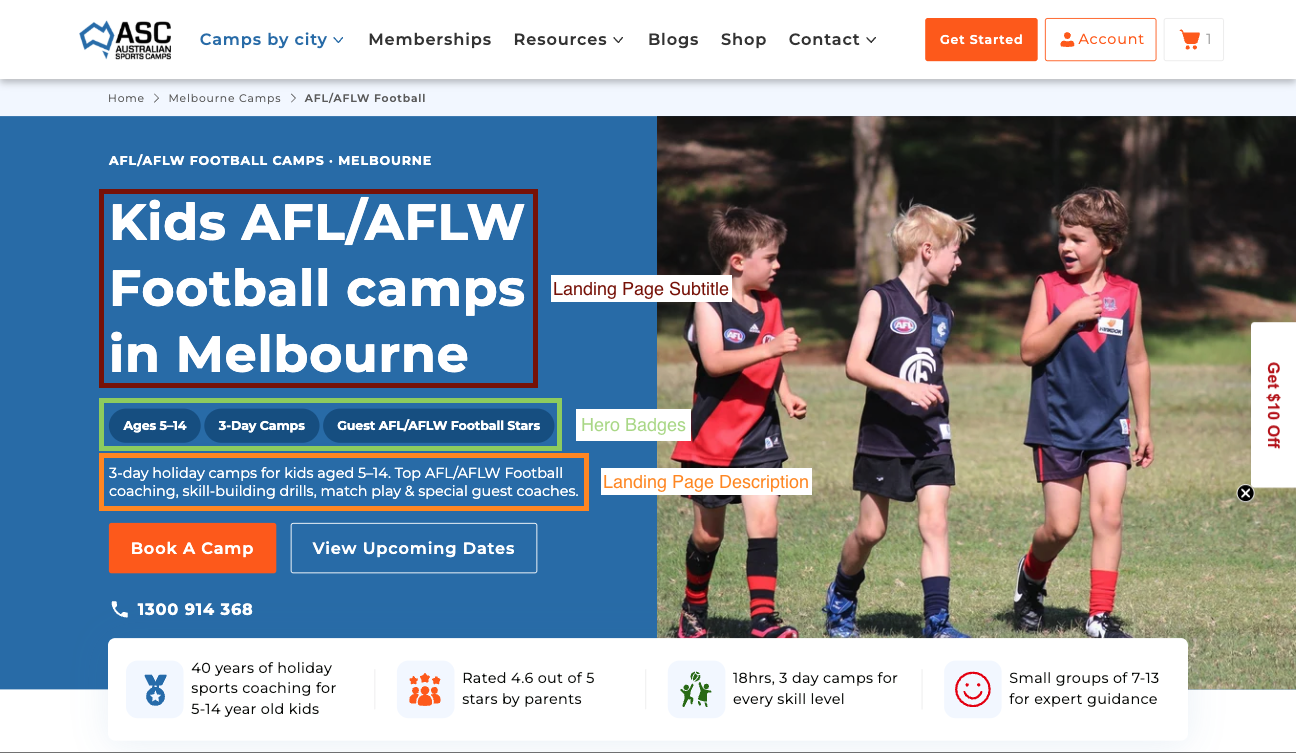
| Landing Page Subtitle | The large main heading | "Kids [Sport] Camps in [City]" |
| Hero Badges | The rounded badges under the heading, one badge per item in the list | "Ages 5–14", "3-Day Camps" and "Guest [Sport] Stars" |
| Landing Page Description | The paragraph under the badges | "3-day holiday camps for kids aged 5–14. Top [Sport] coaching, skill-building drills, match play & special guest coaches." |
| Thumbnail Image | The photo on the right | The Default hero image in Theme settings |
Landing Page Subtitle is the page's main heading, despite its name, and search engines treat it as one. Leave it empty unless the standard heading reads poorly for this sport and city.
The theme builds the small line above the heading, for example "AFL/AFLW FOOTBALL CAMPS · MELBOURNE", from the two filters. It has no field of its own.
Put the hero photo in Thumbnail Image and leave SEO Landing Page: Hero Image empty, because the hero loads both images when both are set. The combo template does not read Hero Video.
The Book A Camp and View Upcoming Dates buttons and the four selling points under the hero are the same on every combo page. Edit them in the theme editor.
Photo and video gallery
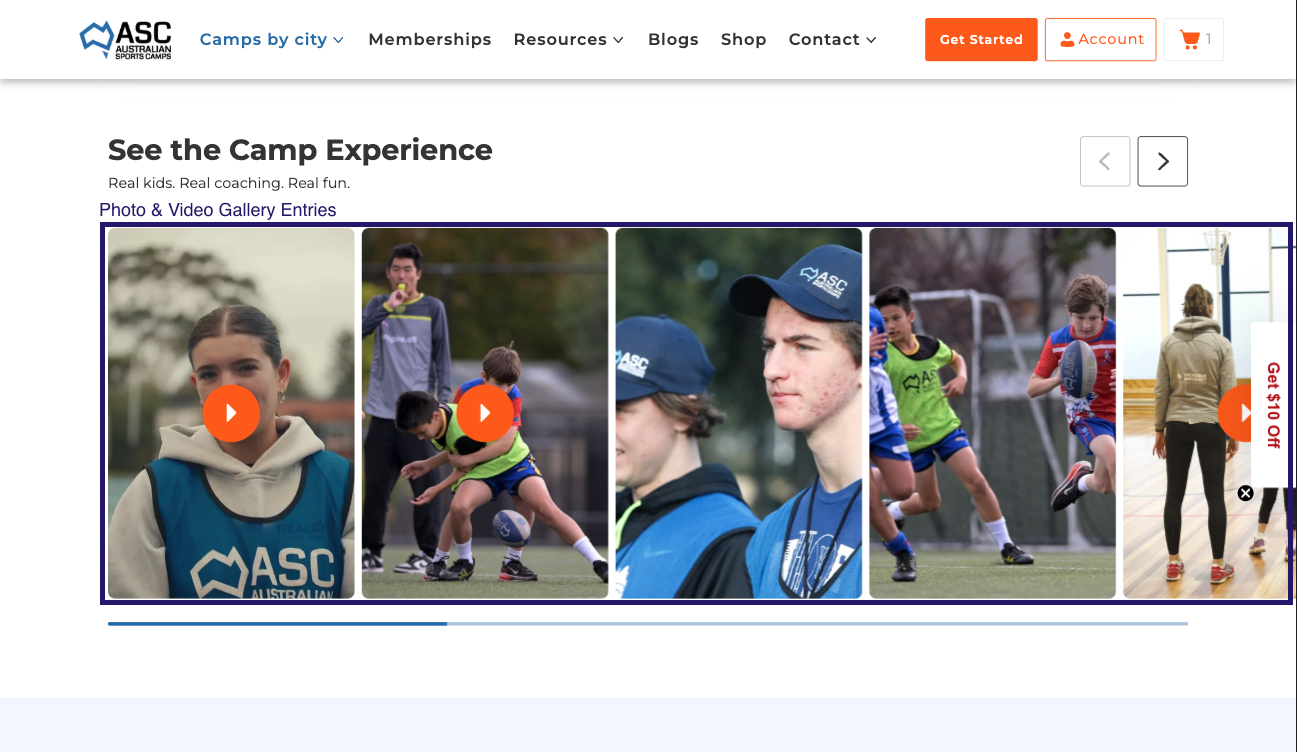
The template sets the heading "See the Camp Experience" and the line under it, so they are the same on every combo page.
The cards come from the page's Photo & Video Gallery metafield, a list of Camp Gallery Card entries, and appear in list order. If the list is empty, the page shows the five default cards chosen in the template.

Add or edit a gallery card
-
Go to Content, then Metaobjects, then Camp Gallery Card.
-
Click Add entry, or open an existing card.
-
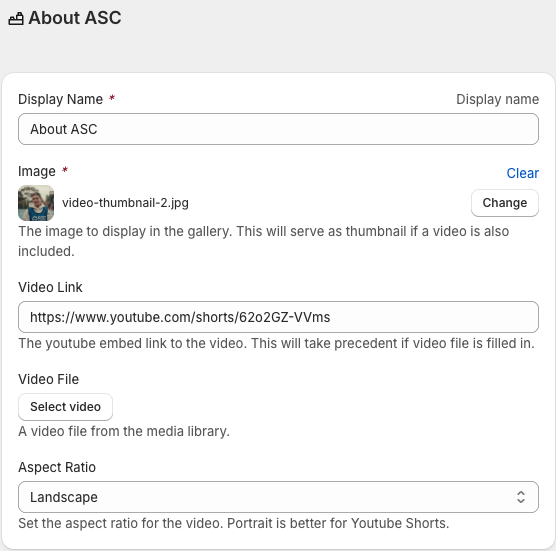
Fill in the fields:
Field What to enter Display Name A name for finding the card in Admin. The website does not show it Image The photo. On a video card, this is the still shown before the video plays Video Link A YouTube link. Leave it empty for a photo card Video File A video uploaded to Shopify. The card uses it only when Video Link is empty Aspect Ratio Landscape, or Portrait for YouTube Shorts -
Save.
-
Open the combo page, add the card to Photo & Video Gallery, and save the page.
A video card shows a play button and opens the video in a pop-up.
What to Expect and Benefits of Attending
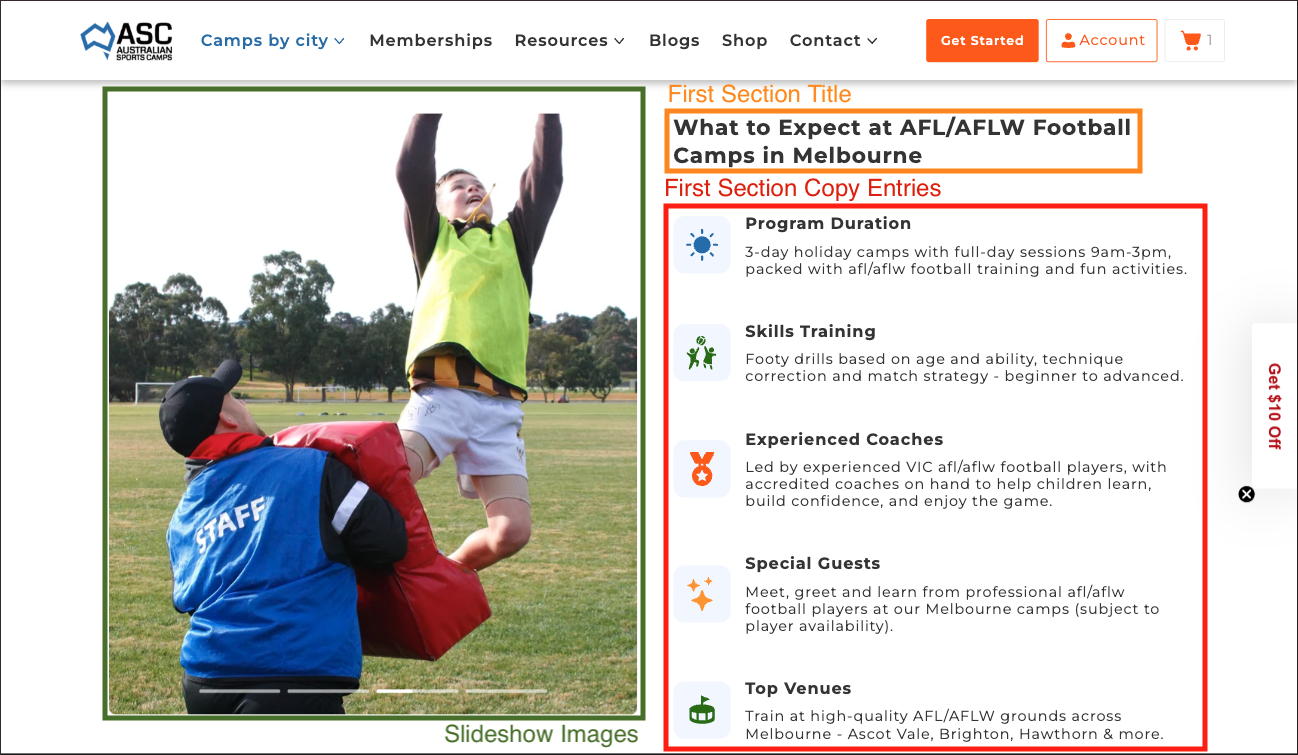
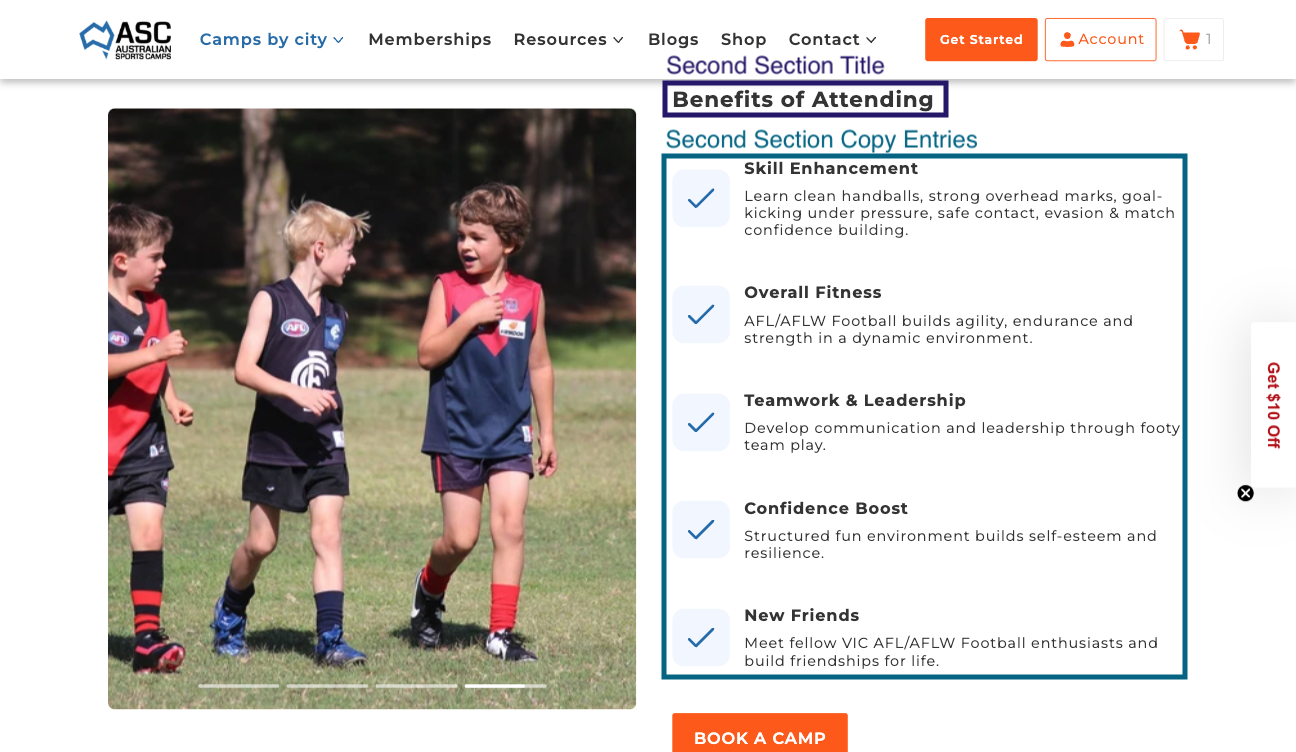
This section reads one Content with Slideshow entry, linked from the page's Content with Slideshow metafield. Each combo page has its own entry, usually named after the page, for example "Melbourne Basketball Camps".
The entry lists copy items. Each copy item is a Content with Slideshow Copy entry, and other pages can list the same copy item.
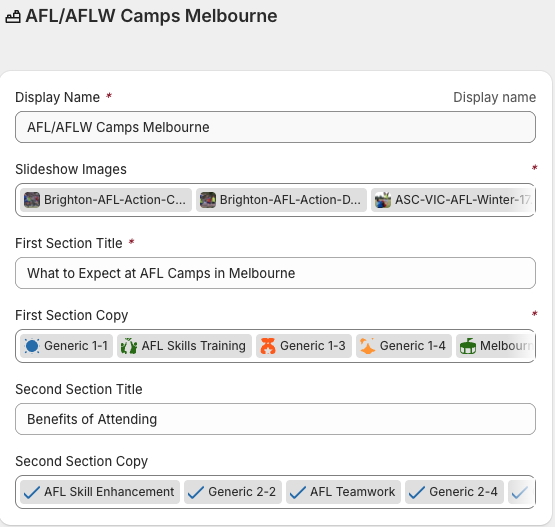
| Field | Shows as |
|---|---|
| Slideshow Images | The photos on the left |
| First Section Title | The first heading, for example "What to Expect at AFL Camps in Melbourne" |
| First Section Copy | The copy items under the first heading |
| Second Section Title | The second heading, for example "Benefits of Attending". If empty, the second list has no heading |
| Second Section Copy | The copy items under the second heading |
Type both headings in full. Tokens such as [Sport] work only in copy items, so a token in either title prints as typed.
If the page has no Content with Slideshow entry, it shows the copy items Generic 1-1 to Generic 1-6 and Generic 2-1 to Generic 2-5 with the template's five photos, but no headings.
Change the headings or lists on one page
- Go to Content, then Metaobjects, then Content with Slideshow, and open the page's entry.
- Edit either heading, or remove, add or reorder copy items in First Section Copy or Second Section Copy.
- Save.
Edit a copy item
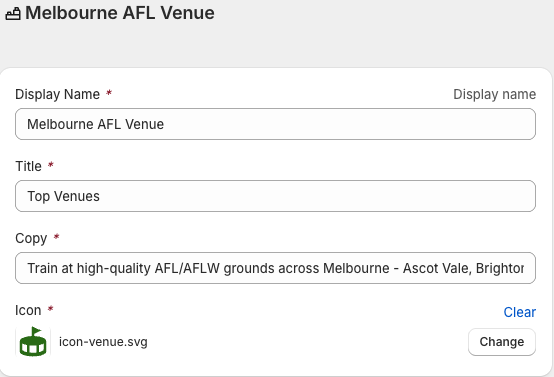
| Field | What to enter |
|---|---|
| Display Name | A name for finding the copy item in Admin, for example "Melbourne AFL Venue". The website does not show it |
| Title | The heading of the copy item |
| Copy | The text under the heading |
| Icon | The small image to the left |
Title and Copy accept tokens. Each page replaces a token with its own value, so one copy item works on every combo page.
| Token | Replaced with | Example |
|---|---|---|
[Sport] | SEO Landing Page: Sport Filter, as typed | AFL/AFLW Football |
[sport] | The same, in lower case | afl/aflw football |
[City] | SEO Landing Page: City Filter, as typed | Melbourne |
[city] | The same, in lower case | melbourne |
[State] | The state short name on the City Metadata entry | VIC |
[state] | The same, in lower case | vic |
[sport] puts the whole name in lower case, for example "afl/aflw football". Use [Sport] for any sport whose name has capitals customers should see.
Many pages share the Generic copy items and the sport copy items, such as "AFL Skill Enhancement". An edit to one changes every page that lists it. To change the wording on one page only, create a new copy item and put it in place of the shared one in that page's list.
Parent reviews
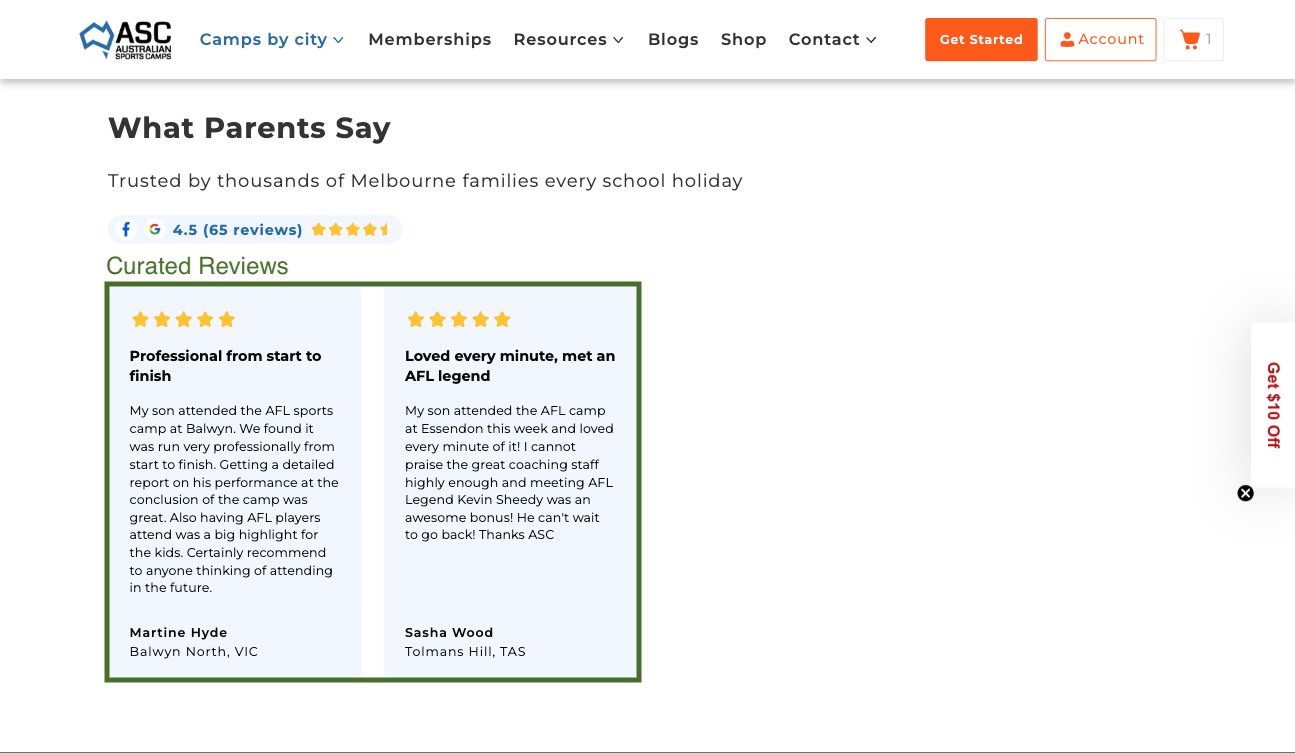
The page's Curated Reviews metafield picks one Curated Reviews entry, which lists the reviews to show. Pages can share an entry, for example "AFL Reviews" for every AFL page. If the metafield is empty, the page shows the Generic Reviews entry.
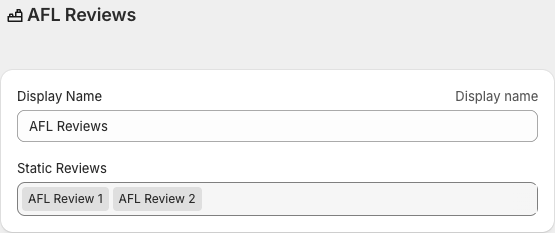
Reviews appear in the order the Curated Reviews entry lists them. The Sort Priority field on a review has no effect in this section.
The template sets the heading, subtitle and rating line. The subtitle, "Trusted by thousands of Melbourne families every school holiday", takes the city from City Metadata and drops it when City Metadata is empty.
Add a review
-
Go to Content, then Metaobjects, then Static Reviews, and click Add entry.
-
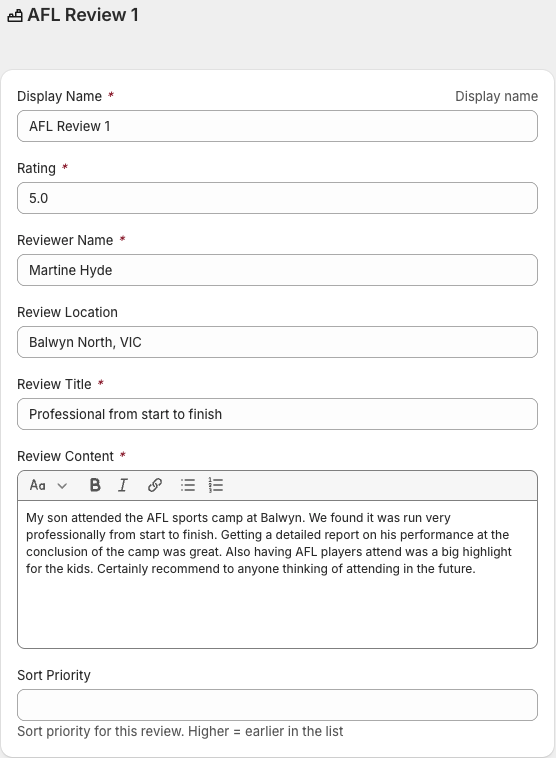
Fill in Rating, Reviewer Name, Review Location, Review Title and Review Content. Rating is a number up to 5, and 4.5 shows four and a half stars.
-
Save.
-
Open the Curated Reviews entry, add the review to Static Reviews, and save.
The Static Reviews section on the home page, city pages, sport pages and booking pages lists every Static Reviews entry, so a review added for a combo page appears there too. See FAQs and reviews.
FAQs
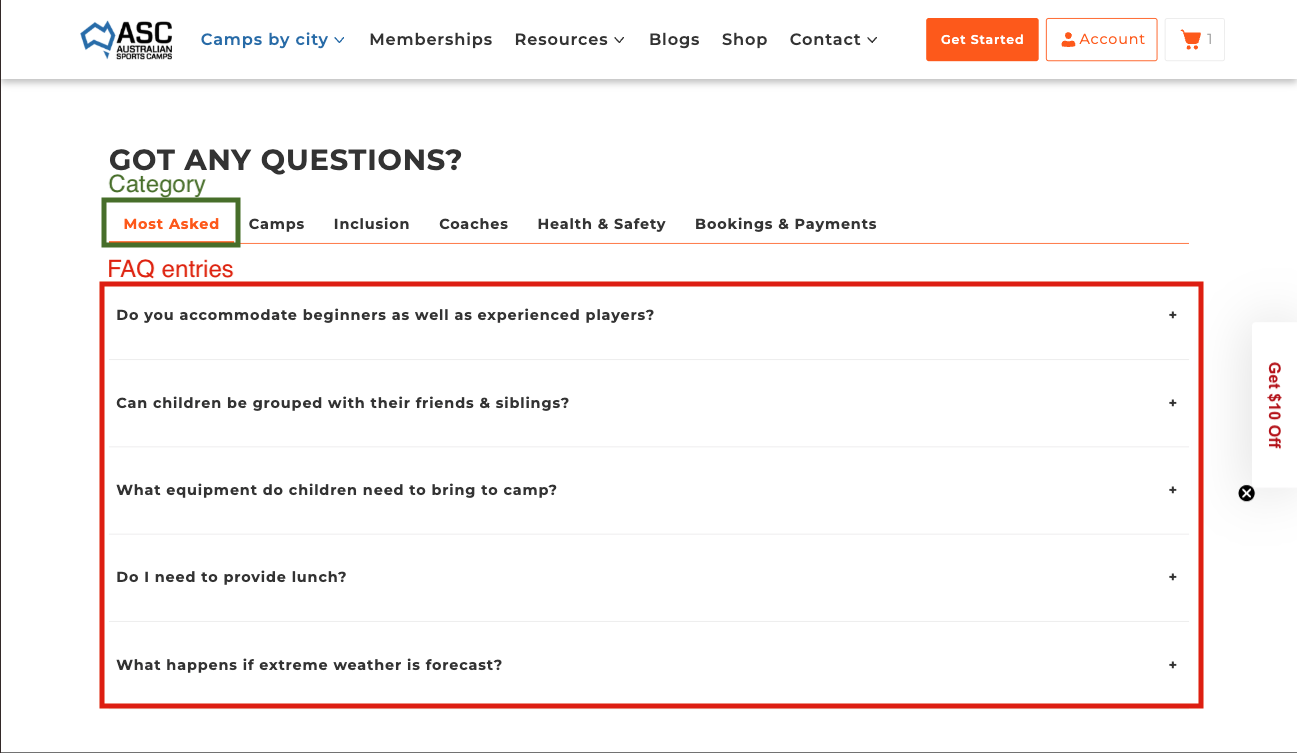
The page's Curated FAQ metafield picks one Curated FAQ entry, which lists the FAQ entries to show. If the metafield is empty, the page shows every FAQ entry.
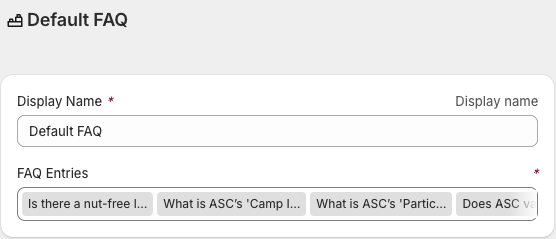
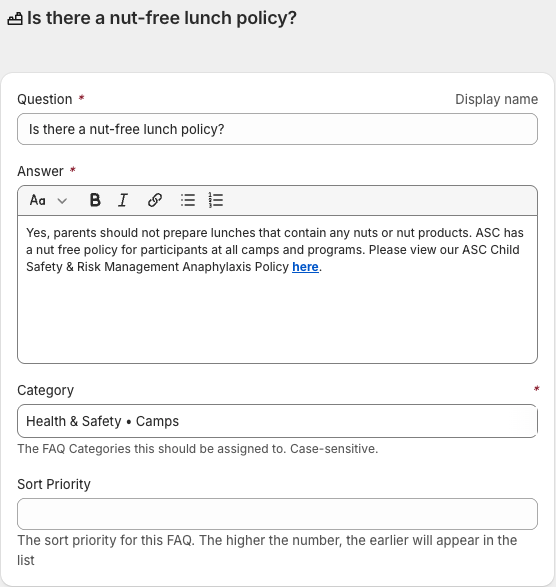
The tabs are the categories of the listed FAQ entries, in the order each category first appears in the list. The section sorts questions by Sort Priority, highest first.
A Curated FAQ entry lists existing FAQ entries and holds no copies of its own. An edit to an FAQ entry changes it on every page that shows it. A new FAQ entry also appears on every page that has no Curated FAQ, because those pages show every entry. See FAQs and reviews for the fields and categories.
Set up a new combo page
- Create the page with the
combo-landing-pagetemplate and the handle described in City and sport pages. - Set SEO Landing Page: Sport Filter, SEO Landing Page: City Filter and City Metadata.
- Set Thumbnail Image.
- Create a Content with Slideshow entry for the page and link it in Content with Slideshow. Without an entry, the section has no headings.
- Pick Photo & Video Gallery, Curated Reviews and Curated FAQ, or leave them empty for the defaults.
- Save.
If you duplicated the page from another combo page, check its Content with Slideshow metafield. If it links to the other page's entry, create a new entry, or both pages will change together.
Verify the change
- Open the page in a private window.
- Check the hero heading, badges, description and photo.
- Check that the camp list shows only this sport in this city.
- Check the What to Expect and Benefits of Attending headings.
- Check that no token, such as
[Sport], shows on the page. - Open a video card in the gallery and check that it plays.
- Check the reviews, the FAQ tabs and their order.
Developer map
| Concern | Source |
|---|---|
| Template and section order | theme/templates/page.combo-landing-page.json |
| Hero and its default wording | theme/sections/hero-city-sports.liquid, city_and_sports in theme/locales/en.default.json |
| Breadcrumbs | theme/sections/page-breadcrumbs.liquid |
| Gallery | theme/sections/photo-video-gallery.liquid, theme/assets/photo-video-gallery.js |
| Camp list | theme/sections/seo-camp-cards.liquid |
| What to Expect and Benefits of Attending | theme/sections/content-with-slideshow.liquid |
| Tokens | theme/snippets/token-replacer.liquid |
| Reviews | theme/sections/curated-reviews.liquid |
| FAQs | theme/sections/faqs.liquid |
| Bulk update of slideshow entries on all combo pages | misc/combo-landing-page-update/ |
| Full metafield and metaobject inventory | docs/city-and-sports-metafields.md |
City and sport pages
Create and edit city pages, sport pages, SEO landing pages and general content pages, and set their hero image, video and camp lists.
Pricing and early bird
Change camp prices in bulk, run an early bird offer, set the countdown banner, and create the early bird dates that Zoho uses.