Pricing and early bird
Change camp prices in bulk, run an early bird offer, set the countdown banner, and create the early bird dates that Zoho uses.
Early bird pricing has three separate parts, and each is set in a different place:
| Part | Where | Read by |
|---|---|---|
| The prices customers see and pay | Each variant's Price and Compare-at price | Website and checkout |
| The countdown banner | Theme editor, Countdown Banner section | Website |
| Which bookings count as early bird in Zoho | Content, Metaobjects, Early Bird Dates | Zoho integration |
Changing one does not change the others. When an offer starts or ends, update all three.
How prices display
| Price | Compare-at price | Booking page shows |
|---|---|---|
| 399 | blank | $399 |
| 339 | 399 | $339 in bold, with $399 struck through |
Price is the amount charged. Compare-at price is the full price shown struck through. Set Compare-at price only while an offer is running, and clear it when the offer ends.
Change prices in bulk
-
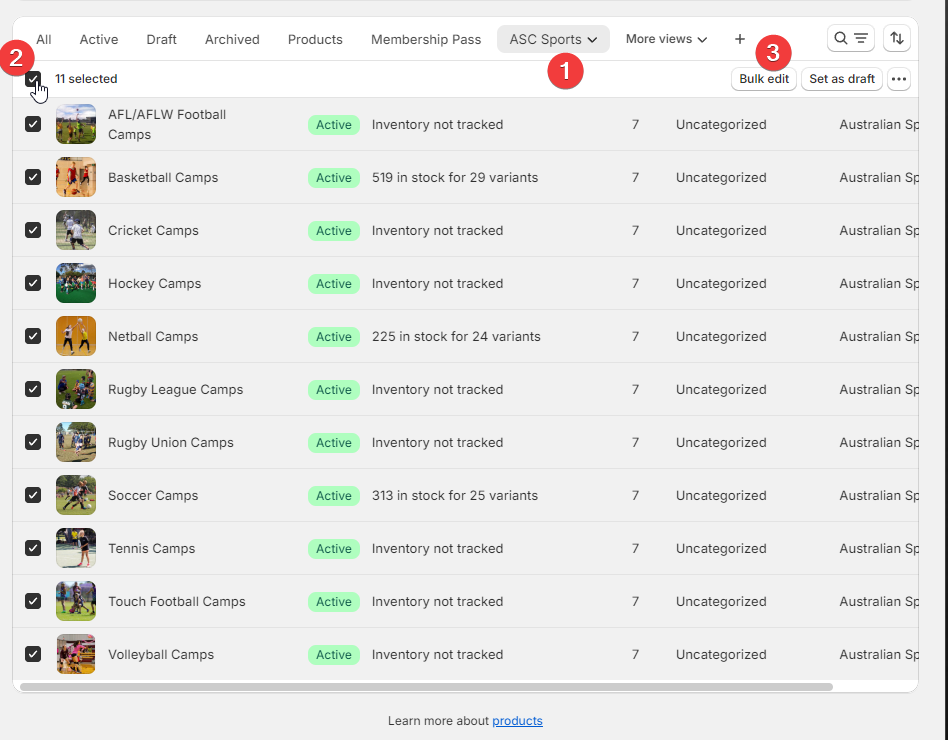
In Shopify Admin, go to Products and open the ASC Sports view.
-
Tick the box at the top of the list to select every product.
-
Click Bulk edit.
-
Click Columns and make sure Price and Compare-at price are ticked.
-
Edit the values for each camp. The editor works like a spreadsheet, so you can copy a value down a column.
-
Click Save.
To start an offer, copy each camp's current price into Compare-at price, then enter the early bird price in Price. To end it, copy Compare-at price back into Price and clear Compare-at price.
For large changes, Bulk data describes exporting to a spreadsheet with Matrixify instead.
Countdown banner
The countdown banner sits at the top of every page. It hides itself automatically once its end time has passed.
-
Open the theme editor from Online Store, Themes, Customize.
-
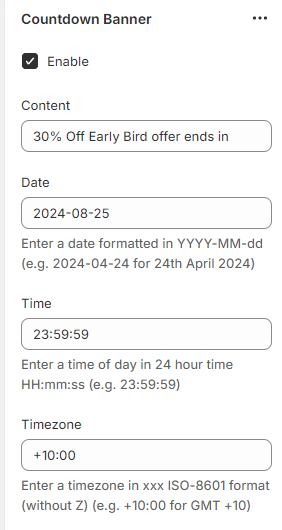
In the left sidebar, select Countdown Banner in the header area.
-
Set the fields:
Setting What to enter Enable Ticked to show the banner Content The message before the timer, for example "30% Off Early Bird offer ends in" Date End date as YYYY-MM-DD, for example2026-11-30Time End time as HH:MM:SSin 24-hour time, for example23:59:59Timezone +10:00for AEST,+11:00for AEDT during daylight saving -
Save.
An incorrectly formatted date hides the banner.
Early bird dates for Zoho
Zoho records whether each booking was made at the early bird price. The Zoho integration decides this by checking the order date against the Early Bird Dates entry for the camp's season and year.
Create the entry for a season before any of its camps are uploaded to Zoho or booked. Without it, the integration cannot mark bookings as early bird, and uploading camps for that season to Zoho fails.
-
Go to Content, then Metaobjects, then Early Bird Dates.
-
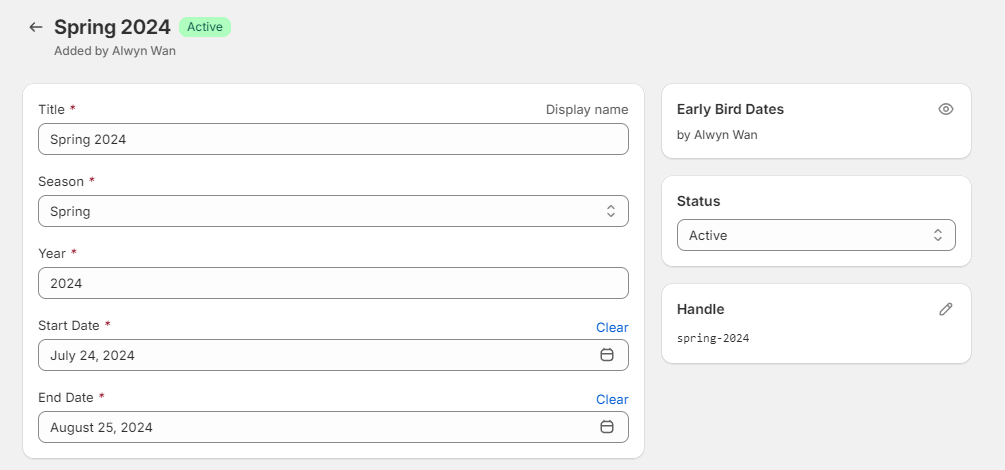
Click Add entry.
-
Fill in the fields:
Field What to enter Title Season and year, for example "Spring 2026" Season The season Year The year, for example 2026Start Date First day of the early bird offer End Date Last day of the early bird offer -
Check the Handle card on the right shows the season in lower case, a hyphen and the year, for example
spring-2026. Shopify creates it from the title. If it differs, click the pencil icon and correct it. -
Save.
The integration finds the entry from each camp variant's Season and Year metafields. Those two values on the variants must match the entry's handle. For example, variants with Season "Spring" and Year 2026 look up spring-2026.
Verify the change
- Open a camp's booking page in a private window. The price and struck-through price should match what you entered.
- Check the countdown banner shows and counts down to the right time.
- After the next booking for that season, check in Zoho that the booking's early bird flag is set as expected.
Developer map
| Concern | Source |
|---|---|
| Price display | theme/snippets/product-prices.liquid, theme/snippets/camp-card.liquid |
| Countdown banner | theme/sections/countdown-banner.liquid, theme/assets/countdown-banner.js |
| Early bird lookup | asc-api-src-zoho-integration repository, src/lib/shopify/getEarlyBirdDates.ts |