Camps and locations
Add a camp, set the variant fields that make it visible and bookable, manage venues and cities, and take a camp off sale.
Each camp is a variant of its sport product in Shopify Admin under Products. The camp's venue is a Location entry, and each Location belongs to a City entry. Both are under Content, then Metaobjects.
A camp only appears on the website when its variant has a SKU and is not marked out of season. Check both first whenever a camp is missing.
Add a camp
-
Go to Products and open the sport.
-
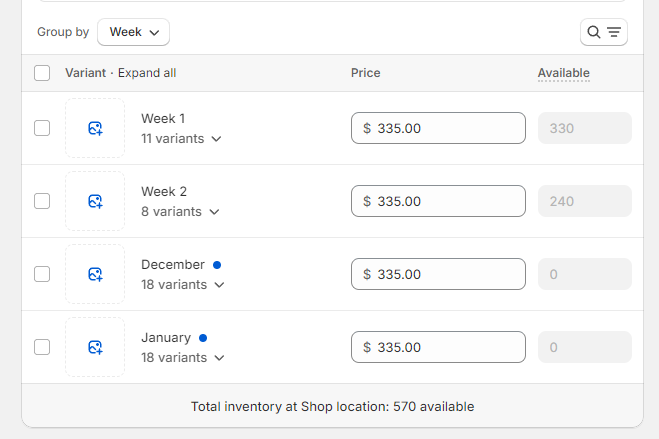
Under Variants, open the option you need to extend, usually Week or Location, and add the new value. Shopify creates a variant for every new combination.
-
Delete any combinations that will not run.
-
For each new variant, set:
Field What to enter Price The price the customer pays Compare-at price The full price, when Price is an early bird price. Leave blank otherwise SKU Required. A variant without a SKU is hidden everywhere on the website Quantity Places available, if inventory is tracked for this product -
Open each new variant and set its metafields, described in the next section.
-
Save.
Variant option names matter. The website reads options named Week and Location. Keep those names exactly, apart from capital letters.
Variant metafields
Open a variant and scroll to Metafields, then click View all.
| Metafield | Needed | What it does |
|---|---|---|
| Location Details | Yes | Links the camp to its venue. Drives the map pin, city, suburb and address |
| Camp Dates | Yes | The dates shown to customers, for example 8, 9, 10 October 2026 |
| Camp Start Date | Yes | Sorts camps by date and shows the "N Days" label |
| Camp End Date | Recommended | Also enables the "N Days" label |
| In Season | Yes | false hides the camp. Blank or true shows it |
| Brochure | Optional | A PDF. Adds a Download Brochure button and the brochure sign-up form to the booking page |
| Camp Summary | Optional | The Summary section on the booking page. Falls back to the product description |
| Status Badge: Label | Optional | A label on the camp card, shown in capitals. "SOLD OUT" and "OUT OF SEASON" replace it when they apply |
| Status Badge: List of Colours | Optional | One badge colour: Blue, Green, Grey or Orange |
| Upsell Product | Optional | A product suggested in the cart when this camp is booked |
| Expose For Testing | Testing only | Shows an out-of-season ASC camp in camp lists so it can be tested |
| Sport Safe Name, Sport Icon | Community Sports Camps only | The sport for this variant. Other products take these from the product |
Write Camp Dates as day numbers separated by commas, then the month and year. The website counts the day numbers to show "3 Days". A different format, such as "8-10 October", gives the wrong number of days.
Sort Priority on a variant is not used. Camps are listed with ASC camps first, then by Camp Start Date.
The other variant metafields, such as the email templates, Season and Year, are used by Zoho and the confirmation emails. They are covered in Metafields.
Link a camp to its venue
- Open the variant and click Location Details.
- Choose the venue from the list and save.
- If the venue is not listed, create it first as described below.
- Click Save on the variant as well. The metafield panel and the variant are saved separately.
Add or edit a venue
-
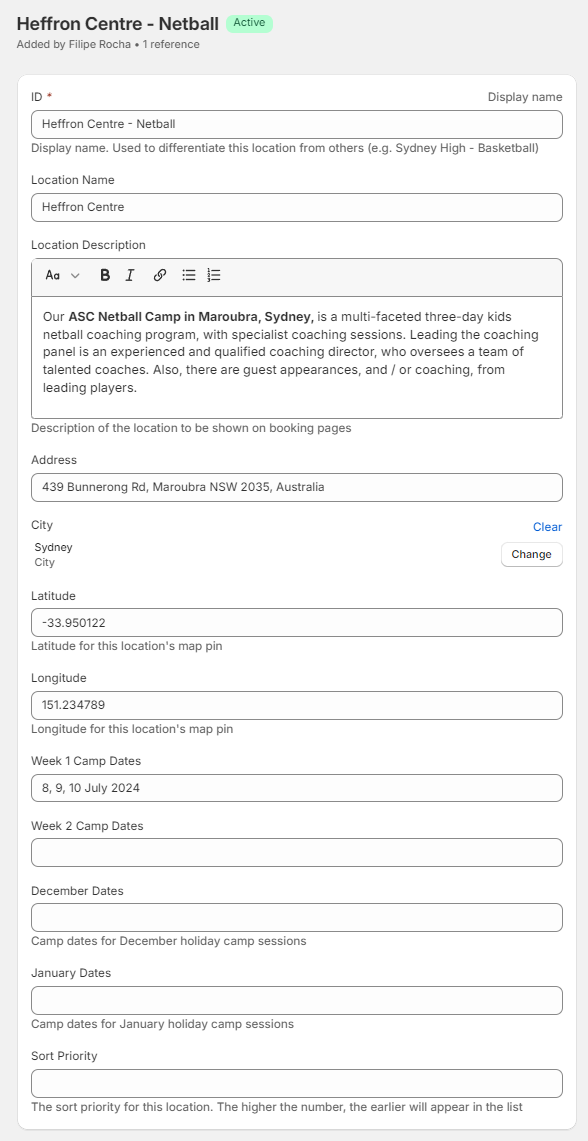
Go to Content, then Metaobjects, then Location.
-
Click Add entry, or open an existing venue.
-
Fill in the fields:
Field What to enter ID A name that tells venues apart in lists, for example "Sydney High - Basketball" Location Name The venue name customers see Location Description Shown in the Location details section on the booking page Address Full street address City Choose the City entry Suburb Used by the suburb filter on city and sport pages Latitude, Longitude The map pin position, for example -33.950122and151.234789 -
Save.
The Week 1 Camp Dates, Week 2 Camp Dates, December Dates, January Dates and Sort Priority fields on a Location are not used by the website. Camp dates come from each variant's Camp Dates metafield. Update the variant when dates change.
A venue can be shared by several camps. Editing its address or pin changes it for all of them.
Add a city
- Go to Content, then Metaobjects, then City, and click Add entry.
- Enter the city name, latitude and longitude of the city centre, state and a Sort Priority. Cities with a higher Sort Priority appear first in lists.
- Save.
- Create the city page with the handle matching the city name, for example
newcastlefor Newcastle. See City and sport pages. - Add the city to the Camps by city menu and the footer Cities menu. See Navigation and footer.
If the city page has a different handle, set the City entry's related page field to that page.
Take a camp off sale
| Situation | Do this | Effect |
|---|---|---|
| Season has ended | Set In Season to false | Camp is hidden from lists and maps. Its booking page shows "Out of season" and cannot be booked |
| Camp is full | Set quantity to 0, if inventory is tracked | Camp shows "SOLD OUT" and cannot be booked |
| Camp is cancelled | Delete the variant, after checking with the bookings team | Camp is removed |
Do not clear the SKU to hide a camp. Zoho booking records carry the SKU, and a missing SKU makes the camp harder to trace.
Test a camp before it goes on sale
- Leave In Season as
false. - Set Expose For Testing to
trueon the variant. The camp now appears in camp lists on city and sport pages. It stays hidden from maps. This works for ASC camps only, not partner programs or Community Sports Camps. - The Book Camp button stays disabled. To open the booking form, add
&start_bookingto the end of the booking page address. - Set Expose For Testing back to blank or
falsewhen testing is finished.
Orders placed while testing go to Zoho in the same way as real orders. Tell the bookings team before placing a test order.
Verify the change
- Open the city page for the camp's venue in a private window. The camp should appear with the right dates and "N Days" label.
- Open the sport page. The camp should appear there too.
- Open the map on either page. The pin should be at the venue.
- Click the camp and check the booking page shows the location, dates and price.
If the camp is missing, follow A camp is not showing.
Developer map
| Concern | Source |
|---|---|
| Visibility rules | theme/sections/camp-list.liquid, theme/layout/theme.liquid |
| Card, badge and duration | theme/snippets/camp-card.liquid, theme/snippets/camp-card-badge.liquid, theme/snippets/asc-camp-duration.liquid |
| Map pins | theme/snippets/geojson-variant.liquid, theme/assets/map-renderer.js |
| Booking page details | theme/snippets/product-details.liquid, theme/snippets/product-accordions.liquid, theme/sections/camp-location.liquid |
| Book Camp button | theme/snippets/product-atc.liquid |
Background is in Catalogue model.