Physical products
Set up an item such as a ball feeder or merchandise so that it can be added to the cart and is recorded in Zoho.
Physical products are ordinary Shopify products, but three settings differ from camps. Without them the Add to cart button does not work, or the sale is not recorded in Zoho.
Add a physical product
-
In Shopify Admin, go to Products and click Add product.
-
Enter the title, description, images, price, SKU, stock and shipping weight as for any Shopify product.
-
Set Theme template, under Online Store on the right, to
saleable. The default product template is built for camps and has no working Add to cart button. -
Add the tags:
Tag Why ecommerce-productThe Zoho integration records the sale as a product purchase. Without it, the sale is not sent to Zoho productHides the camp Safety section on the product page Do not add the tag
sport. It turns the page into a camp booking page. -
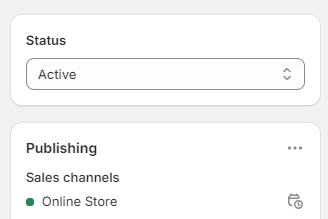
Set Status to Active, and check that Online Store is listed under Sales channels in the Publishing card.
-
Save.
Verify the change
- Open the product page in a private window. It should show a price and an Add to cart button, without a Book Camp button.
- Add it to the cart. The cart should show it as a product line with quantity controls.
- After the first real sale, check in Zoho that the purchase was recorded.
Developer map
| Concern | Source |
|---|---|
| Saleable template | theme/templates/product.saleable.json, theme/sections/main-product-saleable.liquid |
| Tag checks | theme/snippets/product-atc.liquid, theme/snippets/product-accordions.liquid |
| Cart line | theme/snippets/product-cart-item.liquid |
| Zoho routing | asc-api-src-zoho-integration repository, src/features/orders.ts |