Flyers and guides
Add or replace the city flyers, sport flyers and free drill guides that visitors download, and the brochure on a camp's booking page.
Downloadable flyers and guides are metaobject entries in Shopify Admin under Content, then Metaobjects. Visitors do not download the file from the page. They fill in a short form, and Zapier emails them the file.
| Definition | Shown on |
|---|---|
| City Flyers | City pages, the Resources page and the City Flyers page |
| Sports Flyers | Sport pages and the Sports Flyers page |
| Guide | The Free Drills page and the Resources page |
A camp's own brochure is set on its variant instead. See Camp brochure.
Add or replace a flyer
-
Go to Content, then Metaobjects, and open City Flyers, Sports Flyers or Guide.
-
Click Add entry, or open the entry to replace.
-
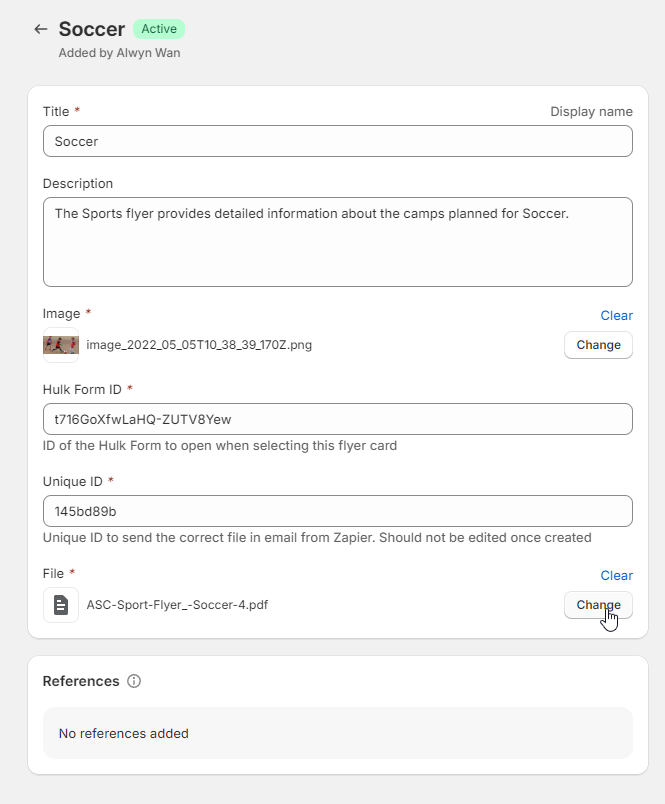
Fill in the fields:
Field What to enter Title Card title, for example "Soccer" Description Card text Image Card image Hulk Form ID The Hulk Form Builder form that opens when the card is clicked. Copy it from an existing entry unless a new form has been built Unique ID Set once when the entry is created. Do not change it afterwards File The PDF to email. To replace a flyer, click Change and choose the new file -
Save.
Every entry in the definition is shown on the pages that list it. To remove a flyer from the website, delete its entry.
How the email is sent
When the visitor submits the form, the website sends the form data and the entry's Shopify id to Zapier. The Download Brochure Flows zap looks up the entry, takes its File and emails the link. If the visitor agreed to receive emails, the zap also adds them to Klaviyo.
A wrong file in the email usually means the File on the entry is wrong. A missing email usually means the zap has stopped, which a developer can check in Zapier.
Camp brochure
A camp's booking page can offer its own brochure.
- Open the sport product and then the variant.
- Set the Brochure metafield to the PDF.
- Save.
The booking page then shows a Download brochure button, which opens the PDF, and a Brochure Newsletter Sub form, which emails it through Zapier.
Verify the change
- Open a page showing the flyer in a private window and click the card.
- Submit the form with your own email address.
- Check the email arrives with the right file.
Developer map
| Concern | Source |
|---|---|
| Flyer cards and form modal | theme/sections/resources-grid.liquid, theme/snippets/resource-entry.liquid, theme/assets/resources-grid.js |
| Form submission relay | src/js/custom.js |
| Camp brochure | theme/snippets/product-actions.liquid, theme/sections/brochure-newsletter-subscription.liquid, theme/assets/brochure-newsletter-subscription.js |
| Zapier hook URLs | Theme settings, ASC - Webhooks |