City and sport pages
Create and edit city pages, sport pages, SEO landing pages and general content pages, and set their hero image, video and camp lists.
City and sport pages are pages in Shopify Admin under Online Store, then Pages. Their layout comes from a shared theme template, and the content that differs between pages is stored in each page's metafields.
Change page-specific content, such as the hero image or which sports a city lists, in the page's metafields. Change layout and wording shared by every city or every sport page in the theme editor, knowing it applies to all pages on that template.
Choose the template
| Page | Template | Handle |
|---|---|---|
| A city with camps, for example Melbourne | find-a-camp-location | The city name, for example melbourne |
| A city with no camps yet | no-camps-available | The city name |
| One ASC sport across all cities | find-a-camp-sport | Sport Safe Name plus -camps, for example basketball-camps |
| One partner program | find-a-camp-sport-partner | Sport Safe Name plus -programs |
| One sport in one city, for search engines | combo-landing-page | City, sport and -camps, for example melbourne-basketball-camps |
| A hand-picked set of camps | camp-landing-page | Any |
| Community Sports Camps | csc | Any |
| General content, such as an about or policy page | basic-page | Any |
The handles matter. The Camp Finder, the City List section and "Learn more" links build page addresses from city and sport names, so a page with a different handle is not linked from them.
Do not use these templates for new pages: city-and-sports (it relies on sections that are not yet released), find-a-camp-sport-testing, get-started-test, get-started-testing, book-a-camp, sport, contact, less-offer-for-belgra and less-offer-for-genesi.
Create a sport page
-
Go to Online Store, then Pages, and open an existing sport page, for example "Basketball Camps".
-
Click Duplicate and give the copy the new title, for example "Hockey Camps".
-
In the Search engine listing preview card, click the pencil icon. Set the page title and the URL handle, for example
hockey-camps. Save. -
Under Online Store on the right, check that Theme template is
find-a-camp-sport, orfind-a-camp-sport-partnerfor a partner program.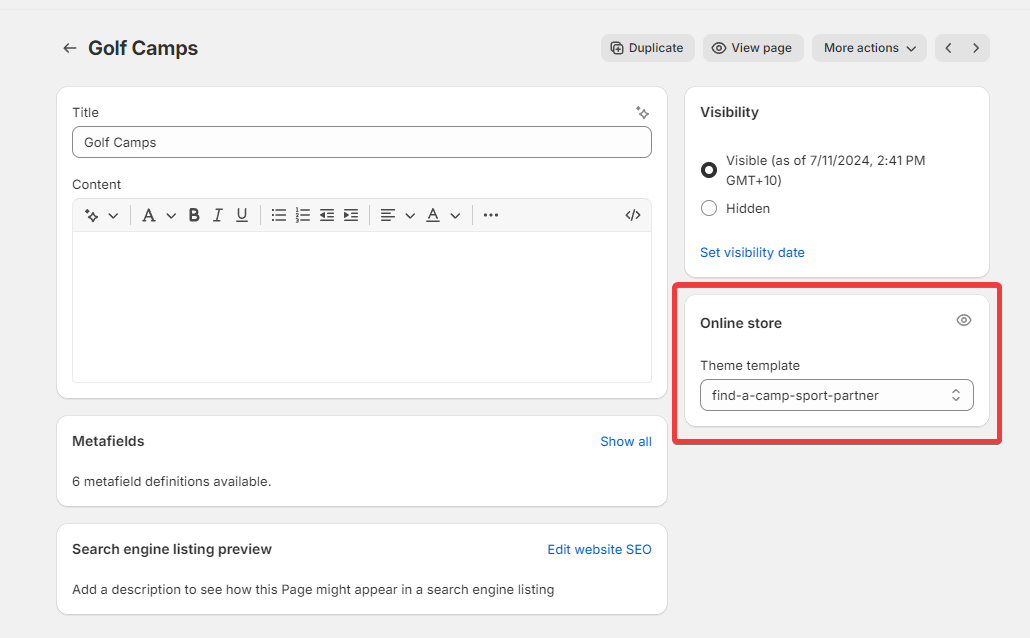
-
Open the page's metafields and set them. See Page metafields.
-
Copy the page address from
/pages/onwards and paste it into the sport product's Landing Page metafield. See Sports.
Create a city page
- Duplicate an existing city page, for example "Melbourne".
- Set the URL handle to the city name in lower case with hyphens for spaces, for example
gold-coast. - Check Theme template is
find-a-camp-location. Useno-camps-availableif the city has no camps yet. - Set City Metadata to the city's City entry.
- Set Sport Products to every sport product that runs camps in that city.
- Set School Holiday Description.
- Save.
The city page shows camps only for venues whose City entry matches City Metadata. The rest of the products' camps are filtered out.
When a new sport starts running in an existing city, add the product to that city page's Sport Products. Otherwise its camps do not appear on the city page.
Page metafields
Open the page, find the Metafields card and click View all.
| Metafield | Used on | What it does |
|---|---|---|
| Sport Products | City and sport pages | The products whose camps are listed. On a sport page the first product sets the sport |
| City Metadata | City pages | The city, used to filter camps, centre the map and fill the hero title and school holidays heading |
| Thumbnail Image | Most pages | Hero image. City pages and the default template do not use it, see below |
| Hero Video | Most pages, including city pages | Hero video. Shown instead of the image when set |
| School Holiday Description | City pages | Text in the School Holidays section near the bottom of the page |
| SEO Copy (Title), SEO Copy (Content), SEO Copy (Read More Content) | Most pages | The text block with a Read More link at the bottom of the page |
| Landing Page Subtitle | Combo and camp landing pages | Hero subtitle |
| Camp Card Heading | Combo and camp landing pages | Heading above the camp cards |
| SEO Landing Page: Sport Filter | Combo landing pages | The sport to list, matching the Sport Safe Name, for example "Basketball" |
| SEO Landing Page: City Filter | Combo landing pages | The city to list, matching the City entry name, for example "Melbourne" |
| SEO Landing Page: Variants | Camp landing pages | The camps to show |
| SEO Landing Page: Hero Image | Any page | An additional hero image source, used before Thumbnail Image |
Related Resource is not used by the website.
The filters on combo landing pages ignore capital letters and treat spaces as hyphens, so "Gold Coast" and "gold-coast" both match.
The redesigned combo landing page uses further metafields for its hero, gallery, lists, reviews and FAQs. See Combo landing page metafields.
Hero image and video
The Hero with video section at the top of most pages picks the first of these that is set:
- The section's Hero Video setting, which most templates connect to the page's Hero Video metafield.
- The page's SEO Landing Page: Hero Image metafield.
- The section's Thumbnail setting, which most templates connect to the page's Thumbnail Image metafield.
- The theme setting Default hero image, under Theme settings, Brand information.
Two templates differ:
find-a-camp-locationsets Thumbnail to a fixed soccer photo rather than the page's Thumbnail Image. To give a city page its own image, set Hero Video or SEO Landing Page: Hero Image.page, the default template, connects neither metafield. Its hero shows SEO Landing Page: Hero Image if set, otherwise the default hero image.
If a page with its own image or video still shows the default, open the page in the theme editor and select the Hero with video section. The Hero Video and Thumbnail settings should show the database icon, which means they are connected to the metafields.
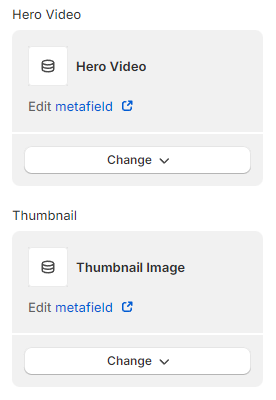
If a setting has a plain image instead, click Change, choose Connect dynamic source and pick the matching metafield. This changes the template, so it applies to every page that uses it.
Create a general content page
- Go to Online Store, then Pages, and click Add page.
- Enter the title and content.
- Set Theme template to
basic-page. This shows the hero, the page content, FAQs and the Camp Finder. - Set the Thumbnail Image metafield for the hero image.
- Save.
The default template, page, has the page content section turned off and does not read Thumbnail Image. Content typed into the page's Content box does not appear on a page using it.
Edit the layout of a template
- Open the theme editor from Online Store, Themes, Customize.
- Use the page selector at the top to choose Pages, then the template, for example
find-a-camp-location. - Edit, add or reorder sections.
- Save.
Every page on that template changes. The FAQs section always shows all FAQ entries. Keep a Camp Finder section on any page with a map, because the map reads its pin images from settings that the Camp Finder section loads.
Verify the change
- Open the page in a private window.
- Check the hero shows the intended image or video.
- On a city page, check that the camps and filters are for that city only.
- On a sport page, check the camp card titles use the right sport name.
- Use the Camp Finder with this city or sport and check it opens this page.
Developer map
| Concern | Source |
|---|---|
| Templates | theme/templates/page.*.json |
| Hero selection | theme/sections/hero-with-video.liquid |
| Camp list and city filtering | theme/sections/camp-list.liquid, theme/assets/camp-list.js |
| Combo landing page matching | theme/sections/seo-camp-cards.liquid |
| School holidays | theme/sections/asc-state-school-holidays.liquid |
| Page links built from names | theme/assets/camp-finder.js, theme/sections/city-location-list.liquid |
Camps and locations
Add a camp, set the variant fields that make it visible and bookable, manage venues and cities, and take a camp off sale.
Combo landing page metafields
Edit the hero, gallery, "What to Expect" and "Benefits of Attending" lists, reviews and FAQs on a combo landing page through its metafields.